
People & access
Access — groups, people, and source sharing
Access is additive: a person can read a document when it grants them through ANY of three routes — a group they belong to, their own account added by name, or their email. Grant access on a source (it flows to everything synced from it) or on a single document.
How access works on a source
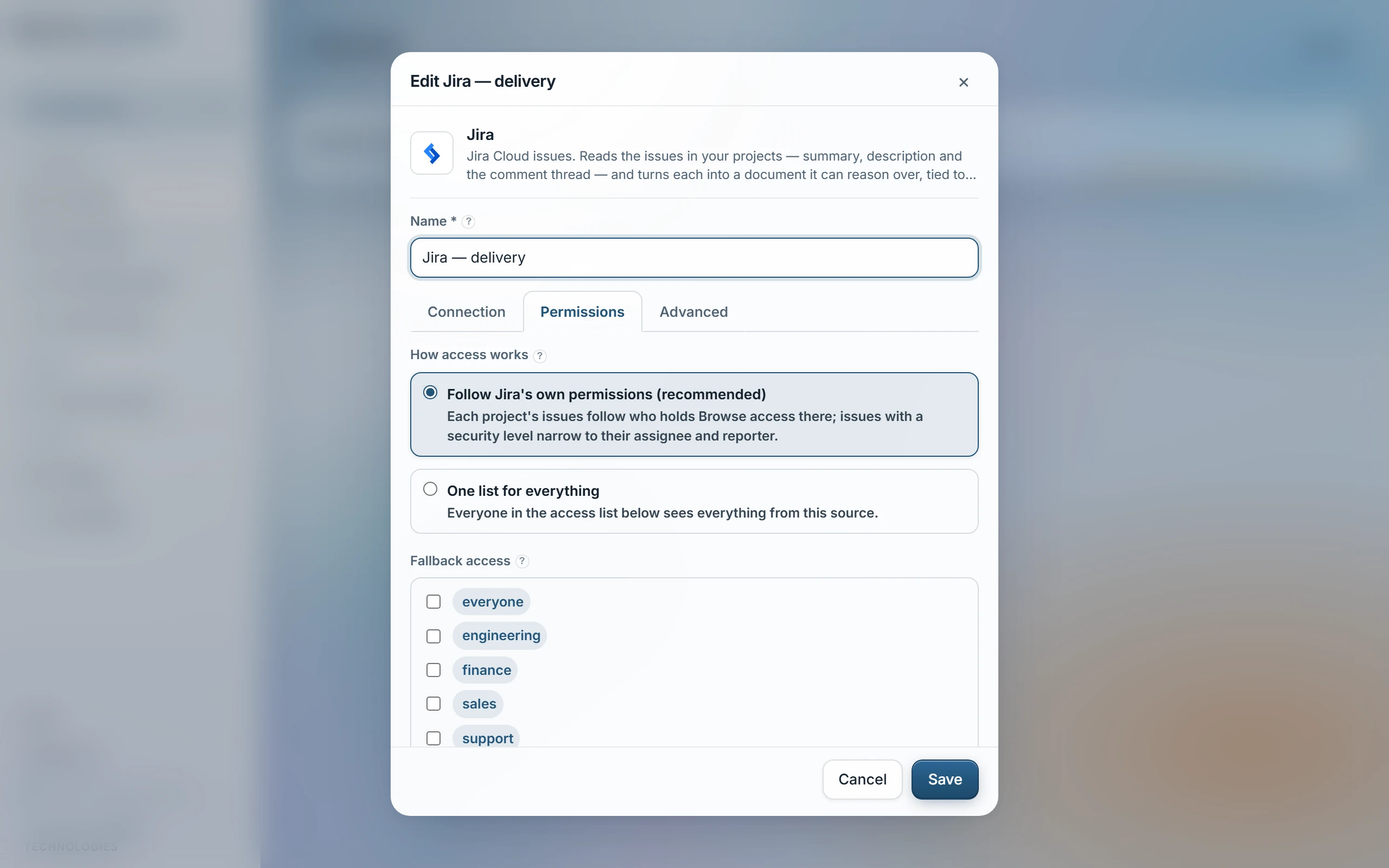
Every source's Permissions tab opens on the choice that matters. Sources that can read the platform's own sharing — file stores like Google Drive, OneDrive, Dropbox and Box, private channels in Slack or Teams, restricted lists, projects and boards, meeting recordings, and more — offer two ways:
- Follow the platform's own permissions (recommended, the default): each item is readable here by the same people who can see it at the platform — a task by its list's members, a file by the people it's shared with, a meeting by its participants. Matched by sign-in email and re-checked on every sync, so a re-share there updates access here automatically, and someone who joins later simply sees what the platform lets them see. The access list on the tab is then the FALLBACK — it covers items the platform doesn't scope to specific people, and public or company-wide shares.
- One list for everything: ignore the platform's sharing and make everything from this source readable by the chosen groups and people. Pick this when the platform's sharing doesn't map to who should ask about the content here.
Sources whose platform has no per-item sharing to read (databases, billing systems, public websites…) simply show the access list — everyone on it can read everything the source brings in.
Granting access by hand
- Whole teams: add groups (see Groups). Low-friction for the common case.
- One person: in the source or document access picker, add them under “Specific people”. Useful for an exception without making a group.
Email is the link: a document shared with someone@your-company.com reaches the account whose email is someone@your-company.com — no extra step, and if that person has no account yet, the document simply stays hidden until one exists with that email (importing your team creates exactly these accounts — see “Import your team”).
The file map (Users → Edit → View file map)
The map shows every document in the index, grouped by source, with a ✓ or ✗ for whether that person can read it and a tally on every folder. Filter to Readable or Blocked, search by name, and click any file to change its access on the spot.
- Make readable — adds that person by name to the document. Nobody else gains access.
- Make not readable — removes their personal grants. When a document reaches them through a group or is open to everyone, one person can't be singled out (access is allow-only) — the dialog explains your options: edit the document's access as a whole, or change the person's groups.
- Edit access — the full picker: groups, specific people, emails.
- Restore source access — forgets any custom list and follows the source again (its default access, or the file's own sharing on mirrored Drive/OneDrive sources, applied on the next sync).
A document changed this way is marked “pinned”: syncs keep its custom access even if the source's permissions change, until you restore source access. Files in Uploaded documents are the exception — their access file is updated instead, so the folder itself stays the source of truth.
Last updated 22 Sep 2026