
People & access
Users & invitations
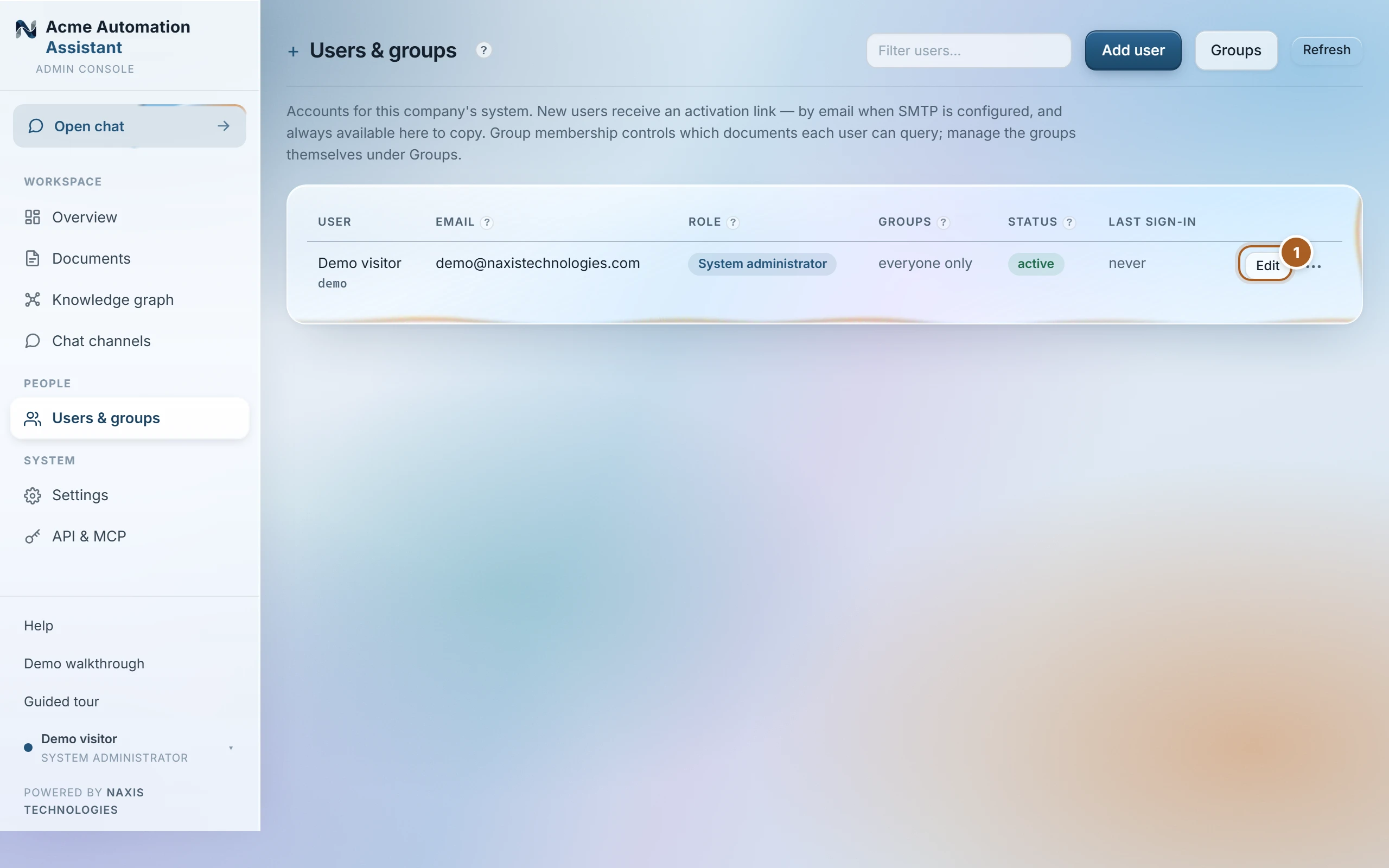
Add a person with their email and groups — you don't set a password. They get a one-time activation link (emailed if email is set up, and always shown here to copy) and choose their own password. If a connected system already knows your team (a CRM, an ERP, GitHub…), you can import everyone from it in one go — see “Import your team”.
| Roles | A User can chat with the assistant. A System administrator can also manage everything in this console. Administrators can't demote or disable their own account, so there is always a way in. |
|---|---|
| Status | Active (has set a password) · Invited (link issued, not used yet) · Invite expired (issue a new one) · Disabled (can't sign in; nothing is deleted). |
| Groups | What the person may read — see Groups. “everyone only” means they see only documents open to all. |
| Chat identities | How the person is recognised on messaging channels (phone number, @username, work email, personal API key) — set them in Edit → Surfaces. |
| Seats | Every active account (including a pending invitation) takes one seat of the plan. When every seat is in use, adding or re-activating a person asks for a bigger plan first — nobody already on board is affected. Disabling or deleting someone frees their seat immediately. See “Plan & seats”. |
- Resend an invite or send a password-reset link any time; links work once and expire (invites after 7 days, resets after 24 hours).
- Disabling an account signs it out everywhere immediately and keeps its history; deleting removes the account, optionally erasing the person's conversations for good (GDPR erasure).
- The access preview in Edit — and the full file map behind it — shows exactly which documents the person can read, computed by the same rules the chat uses.
- With only one administrator, Settings → Security & privacy flags it — add a second so account recovery never depends on one person.
Was this page helpful?
Last updated 22 Sep 2026